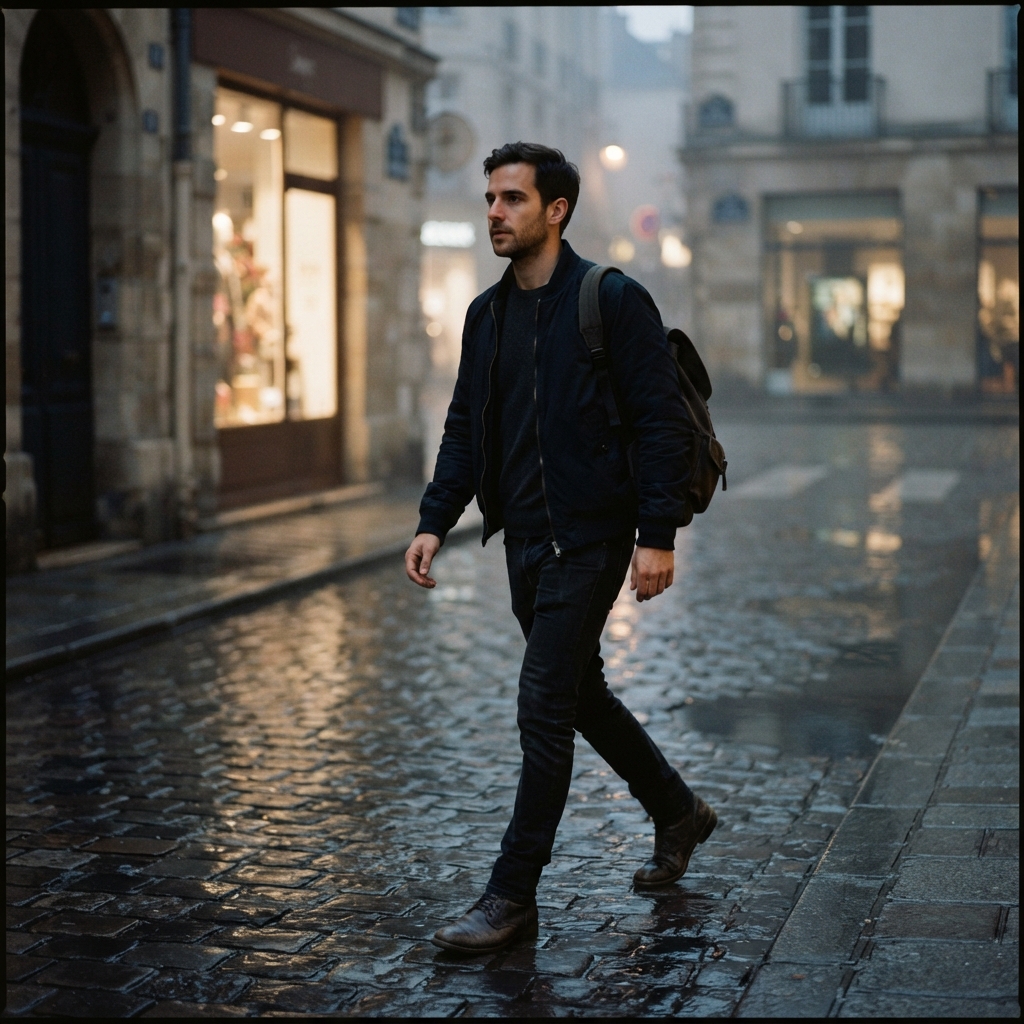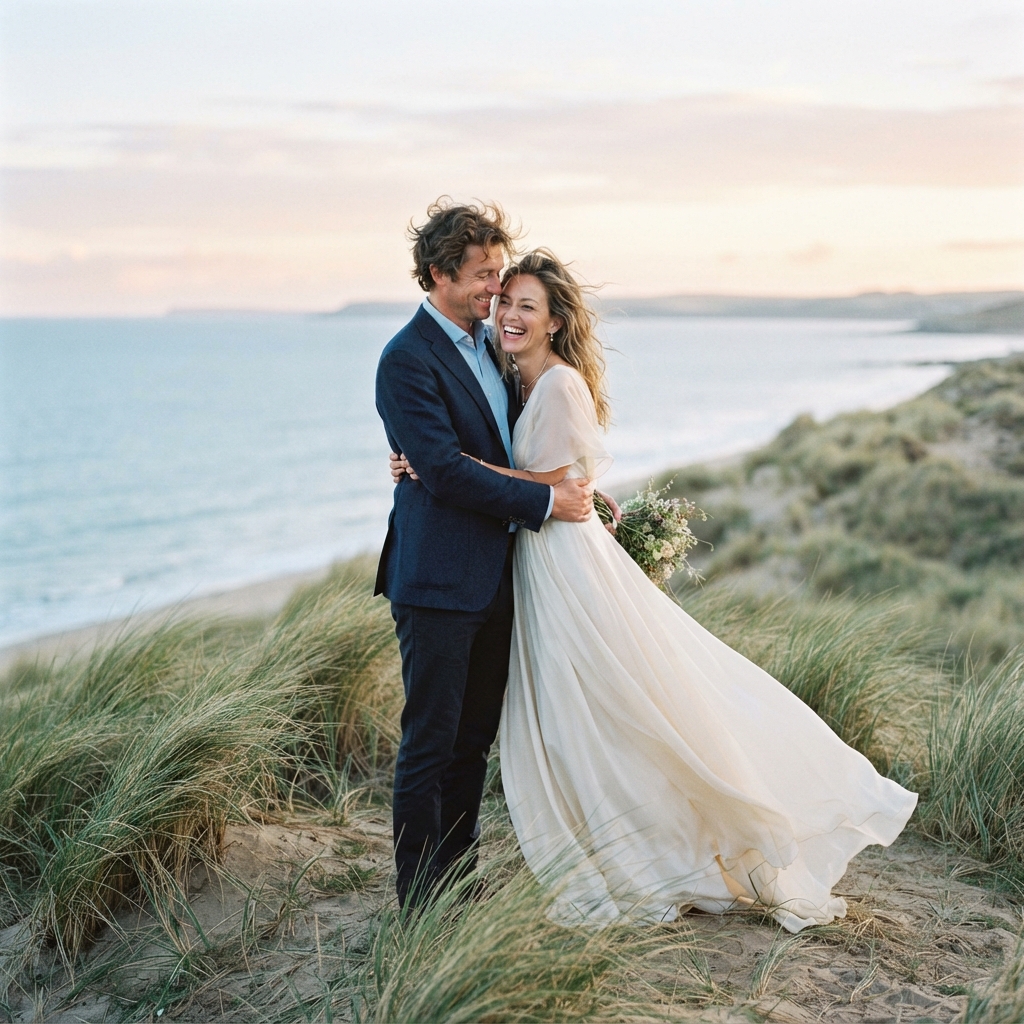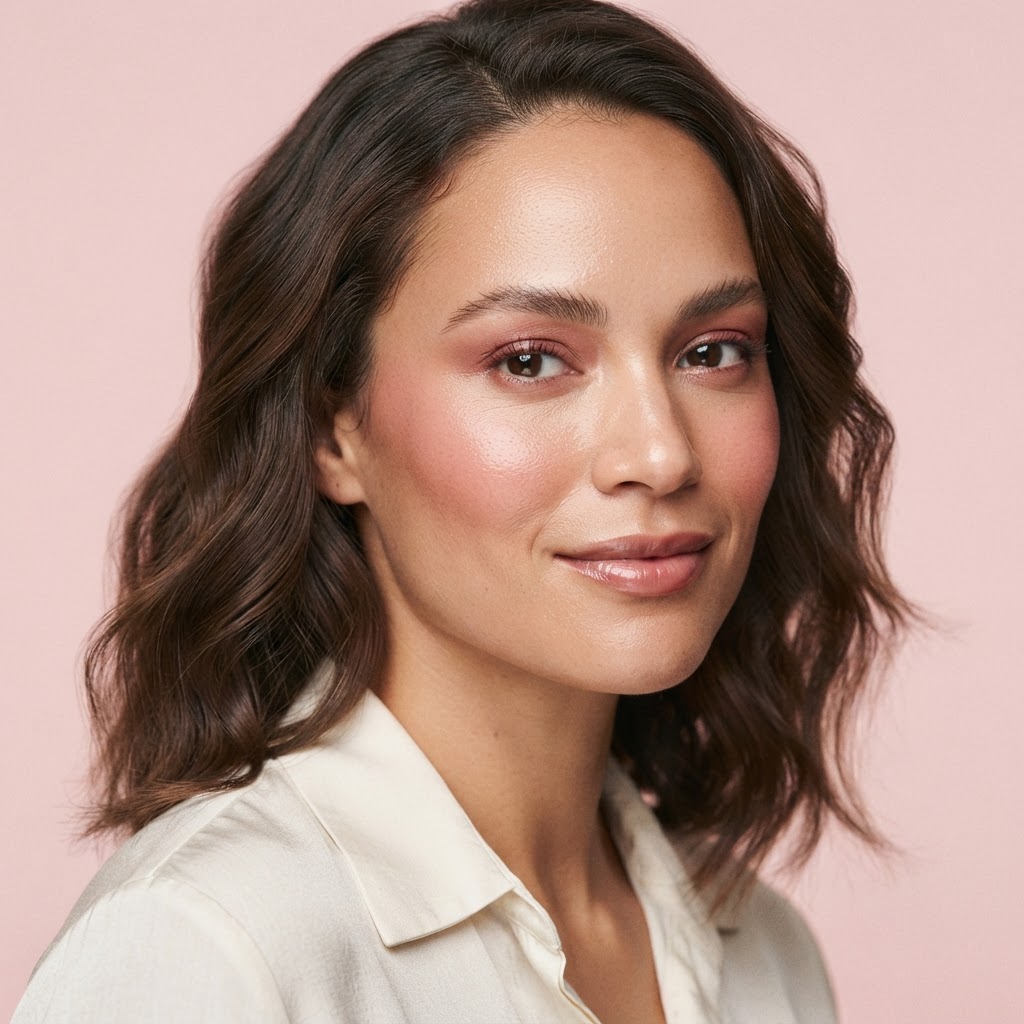
YOUR PHOTO + REFERENCE
“Use my uploaded photo as the identity anchor and create a luminous beauty editorial with real skin texture, diffused light and a petal-pink backdrop.”
AI PHOTO PROMPTS
Use your own photo with reference images and a visual direction to create a new AI photo.
Your photo anchors the person. Add reference photos for the look, pose, wardrobe, setting or lighting you want to borrow.
“Use my uploaded photo as the identity anchor and create a luminous beauty editorial with real skin texture, diffused light and a petal-pink backdrop.”
CURATED CREATIVE DIRECTIONS
Discover prompt-ready references across popular visual collections, then adapt a direction for your own image.
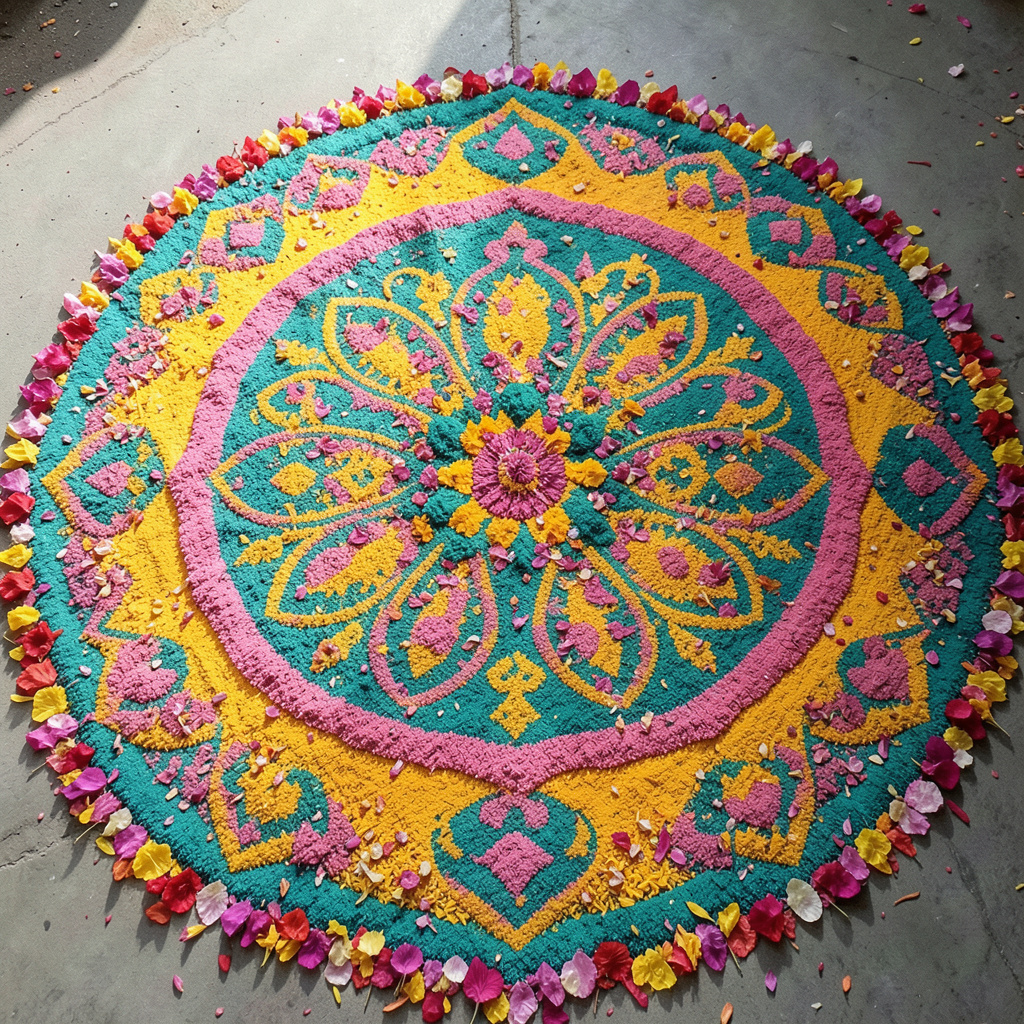 Traditional & CulturalRangoli
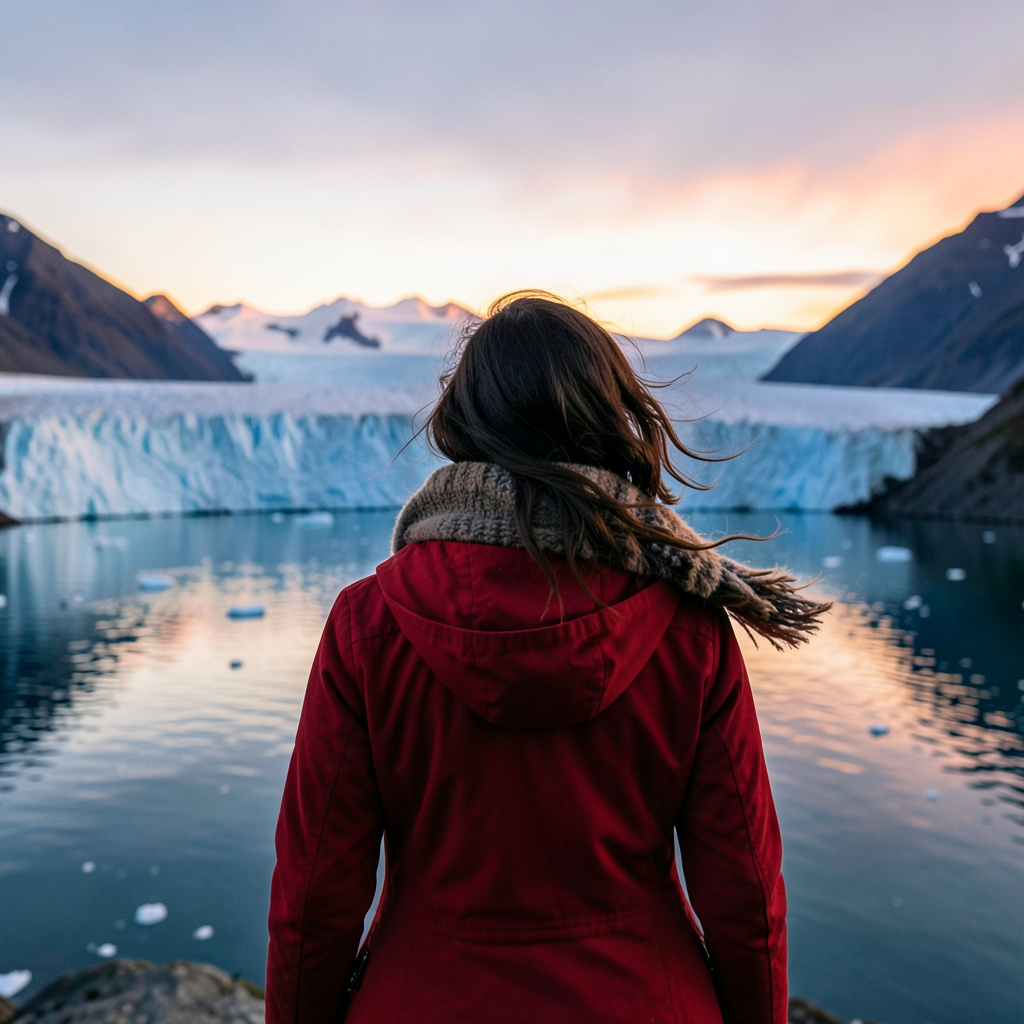 PerspectiveView from Behind
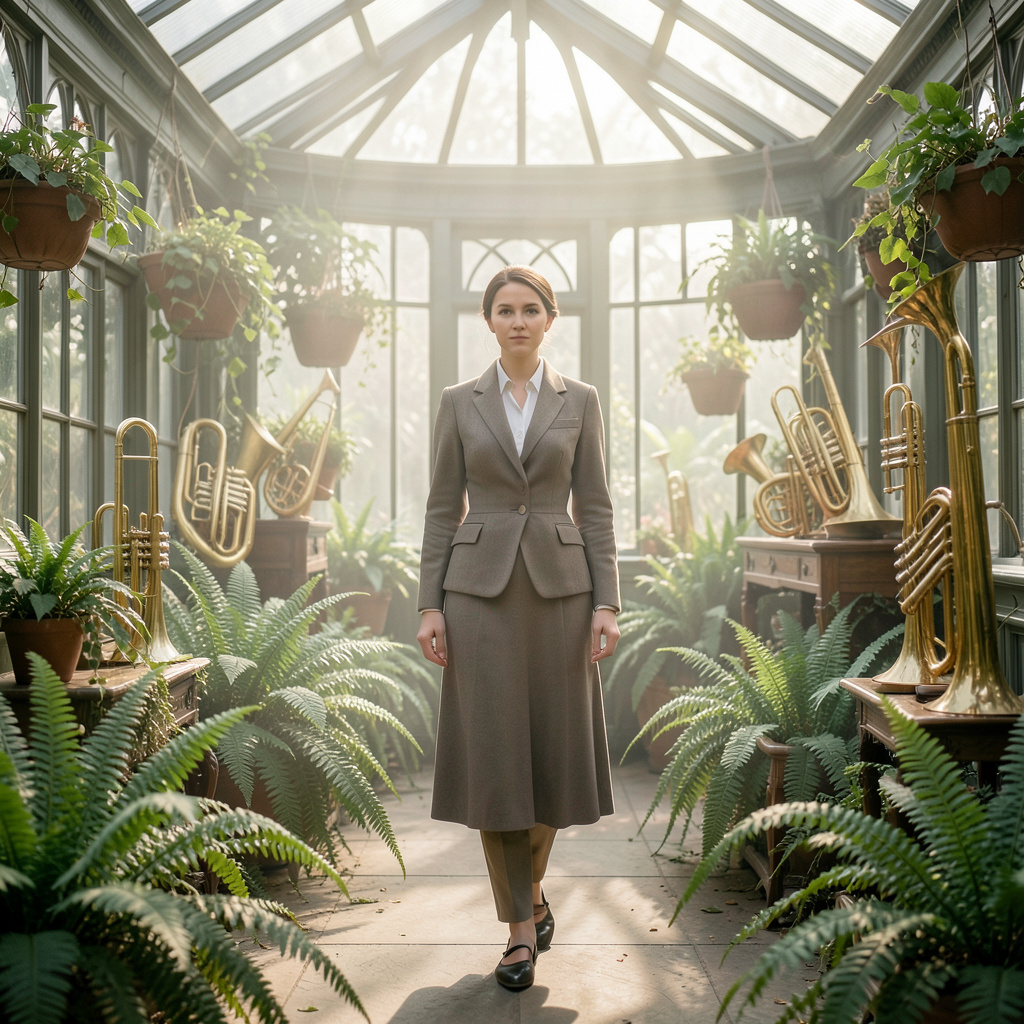 Historical & Art MovementVictorian Period
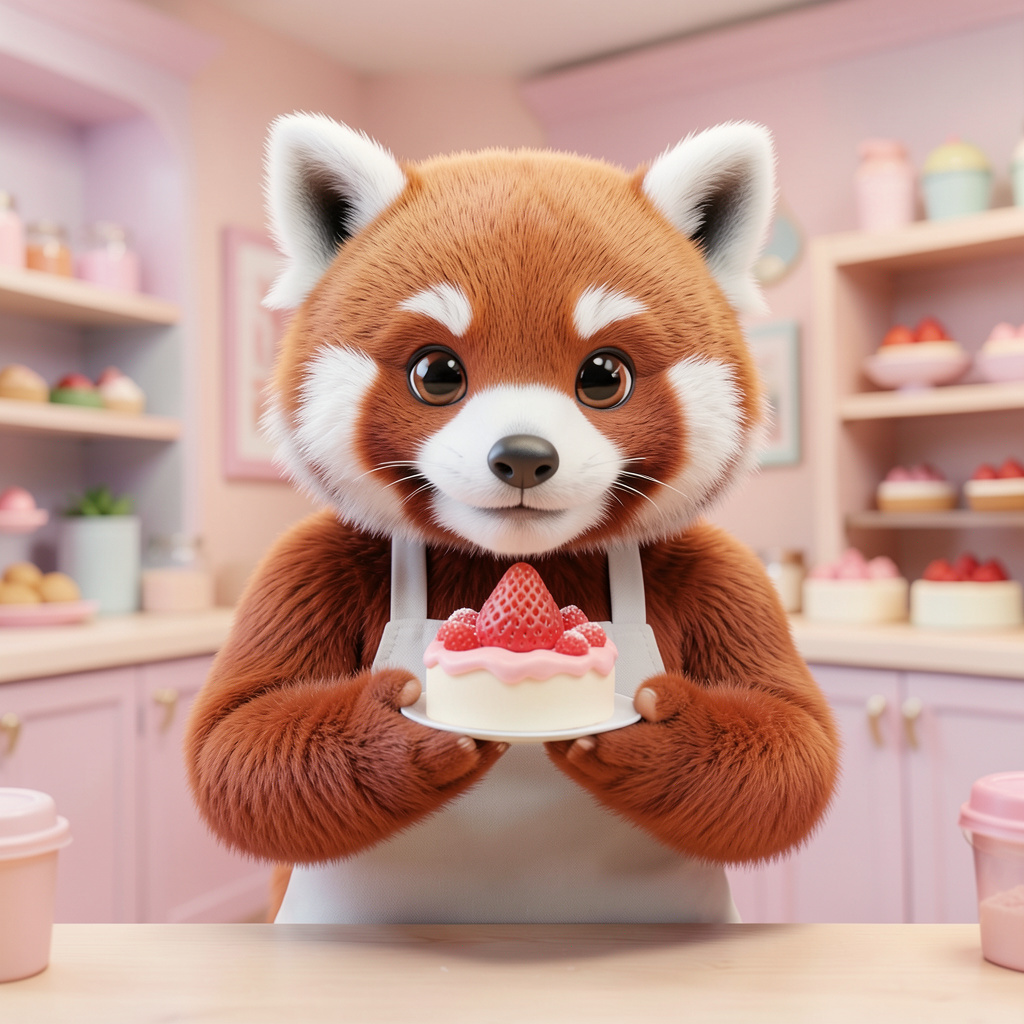 Animation & Illustration3D Animation
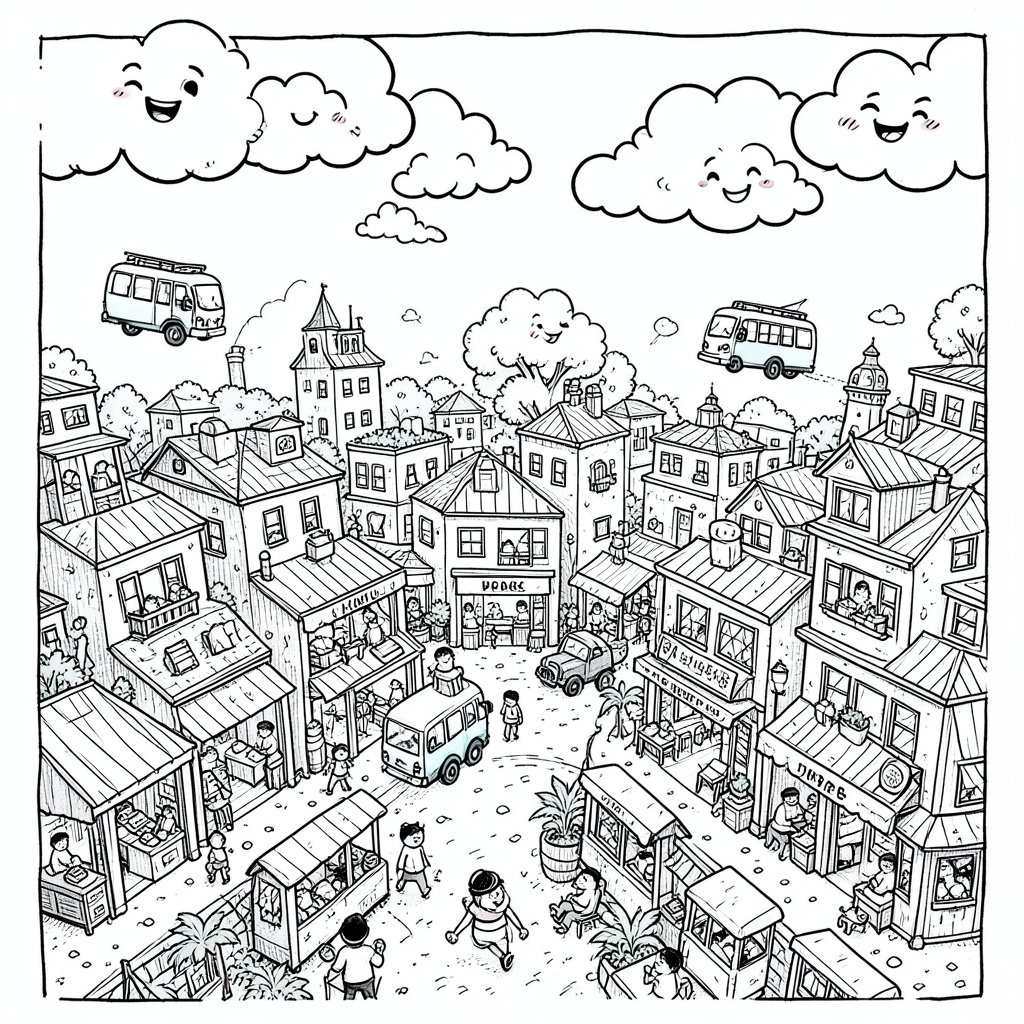 Modern & AbstractDoodle Art
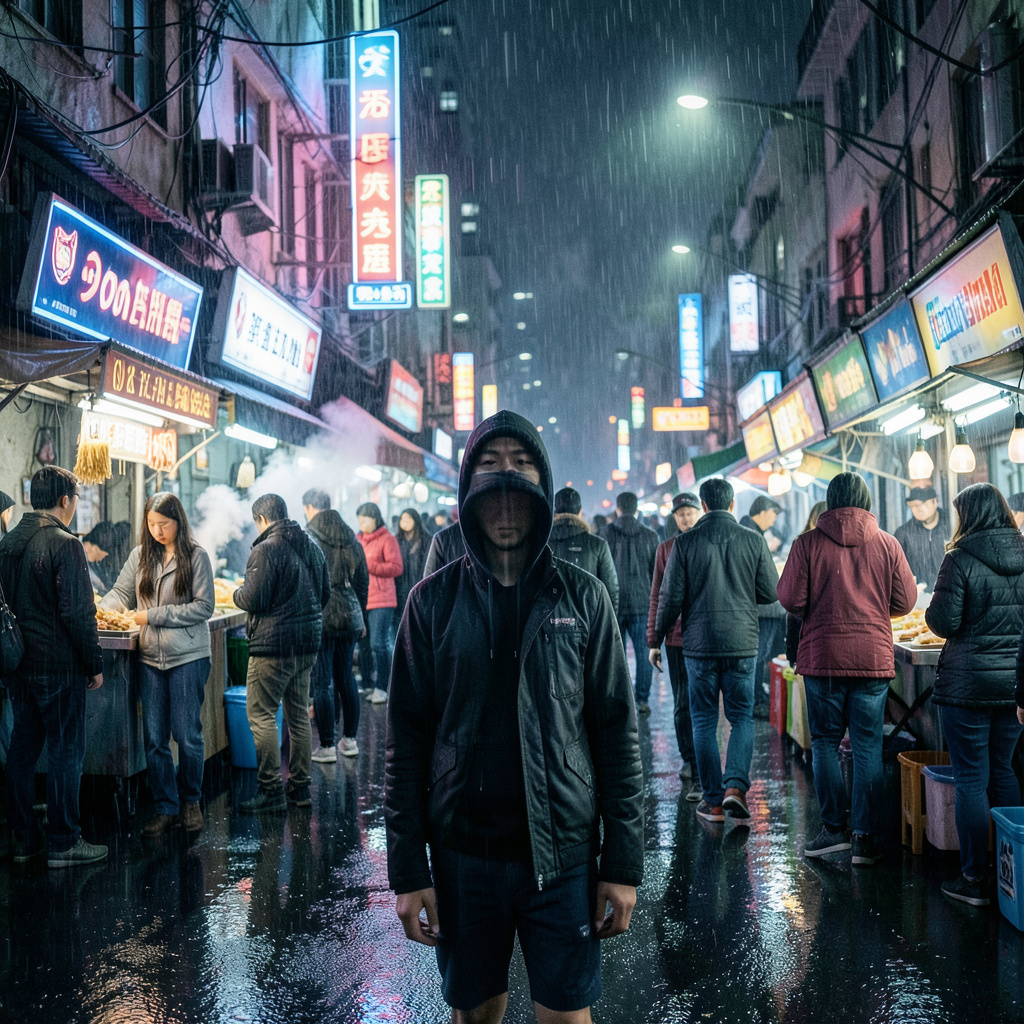 Sci-Fi & FantasyCyberpunk
 Aesthetic and Cinematic PortraitsSun-Washed 35mm Memory
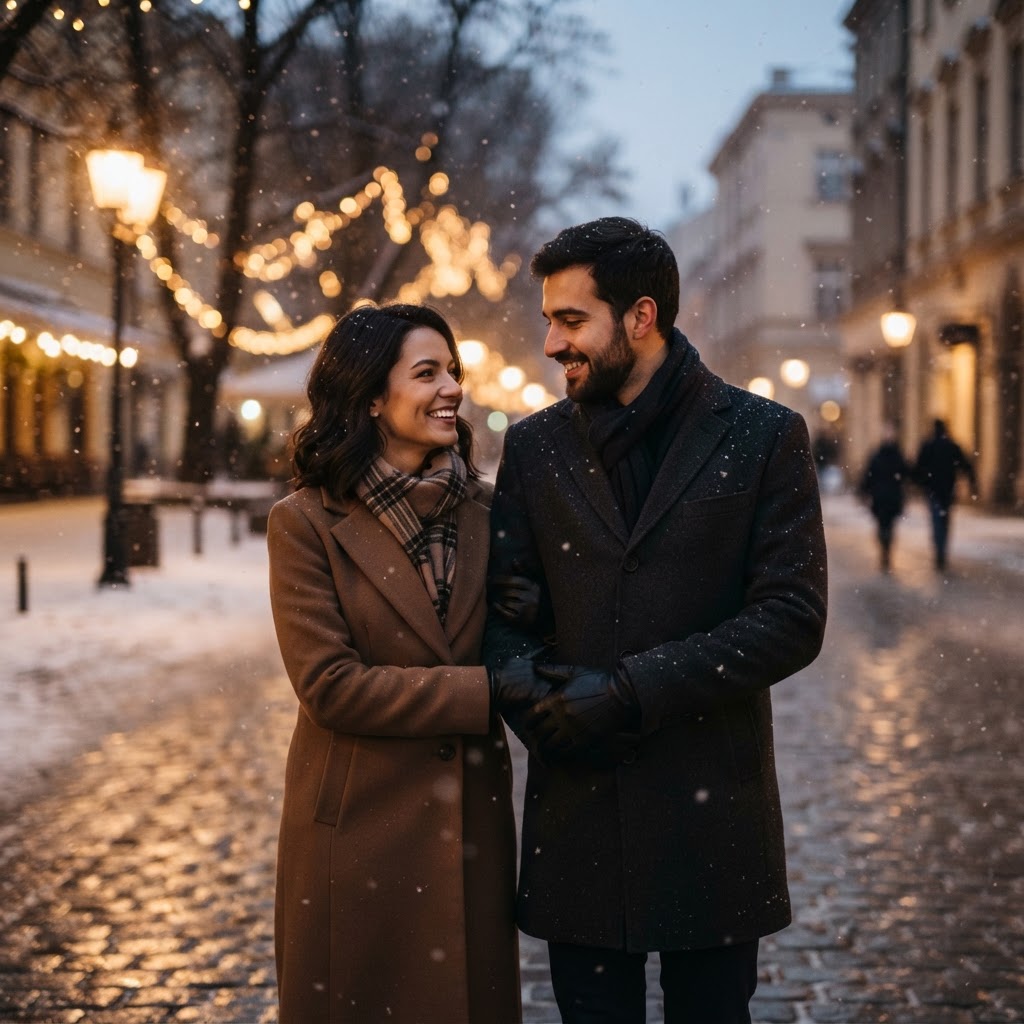 Couple PortraitsSnowy After-Dark Portrait
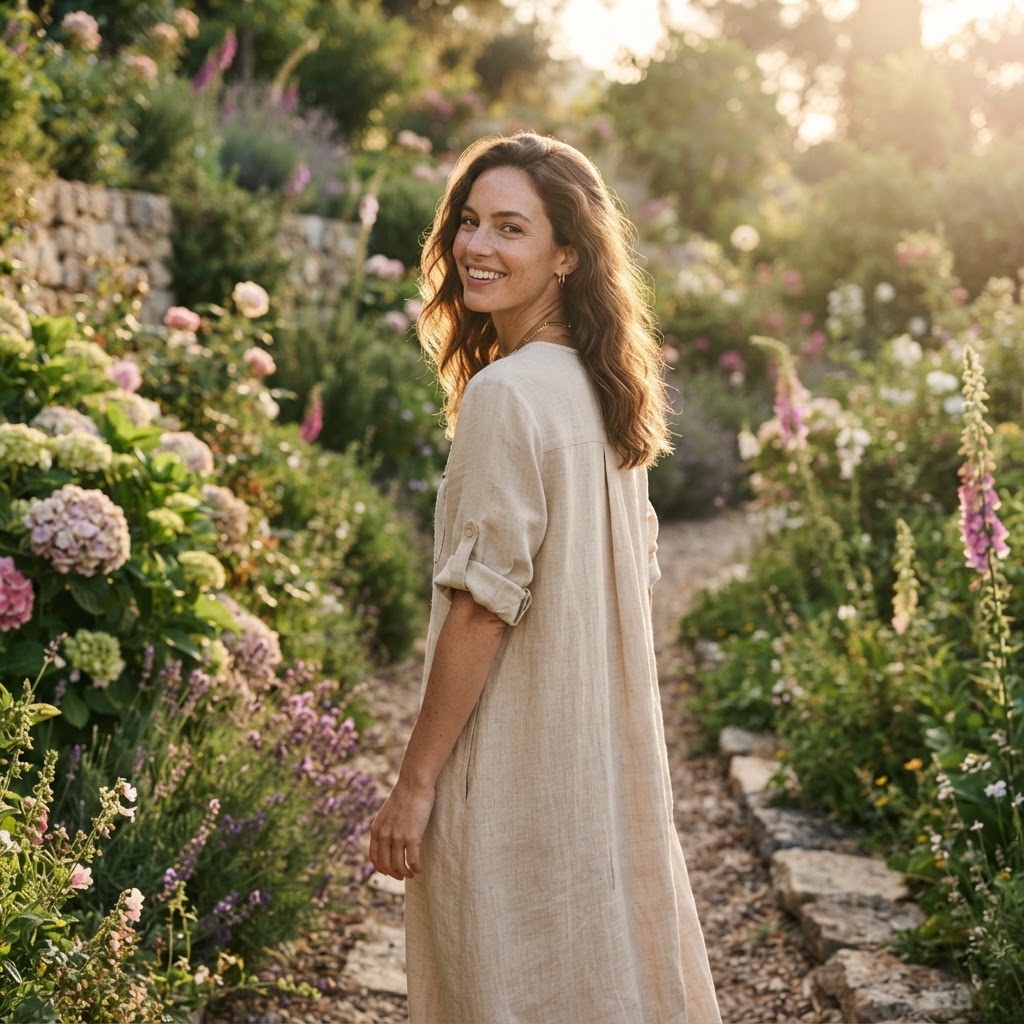 Trending Girl PortraitsSunlit Garden Story Frame
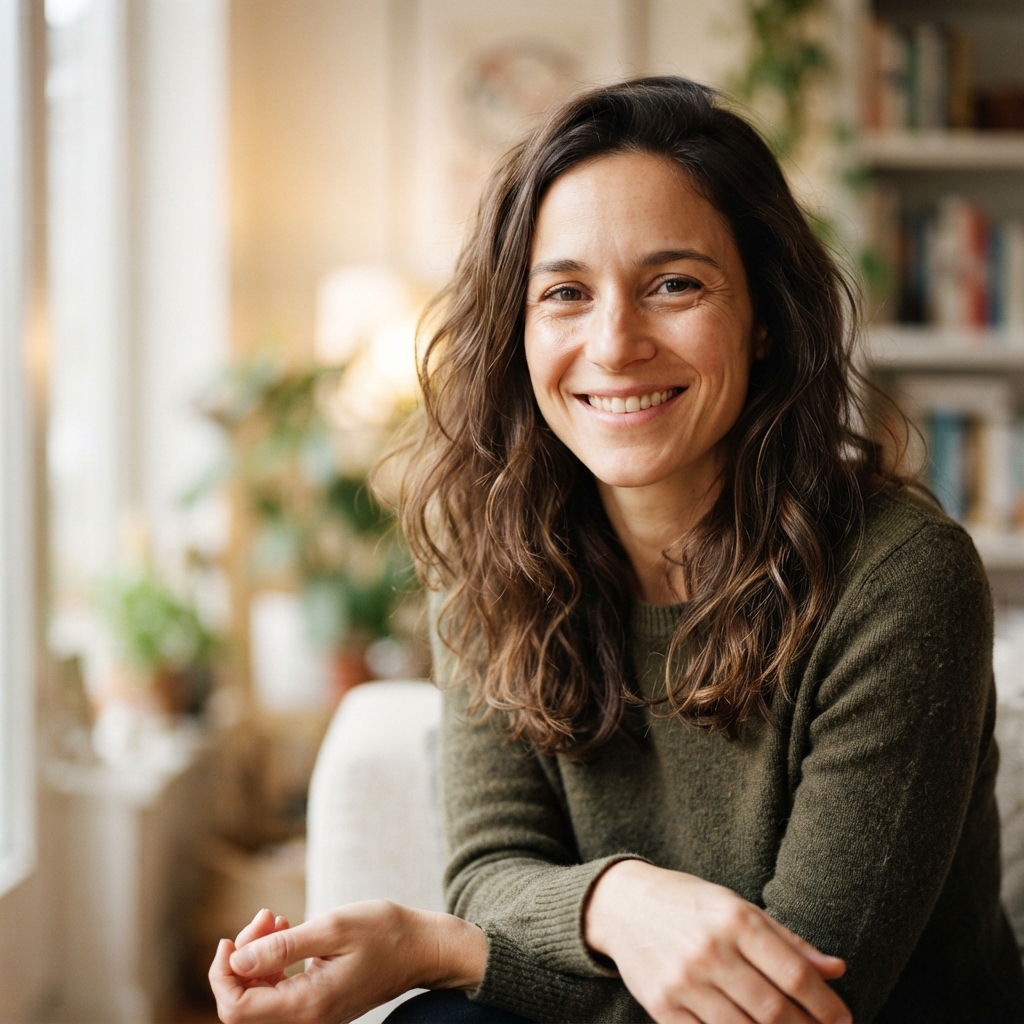 Restoration and EnhancementHigh-Definition Editorial Finish
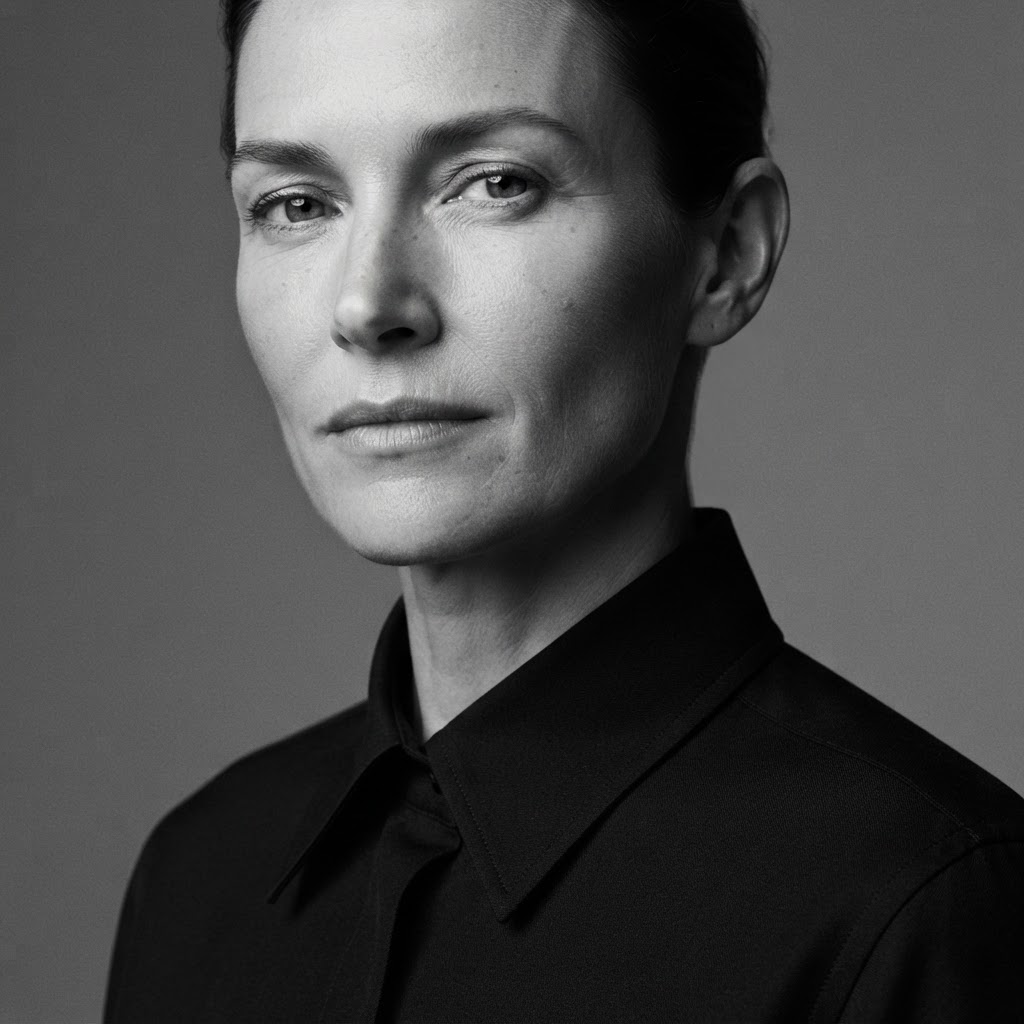 Trending Boy PortraitsMonochrome Studio Campaign
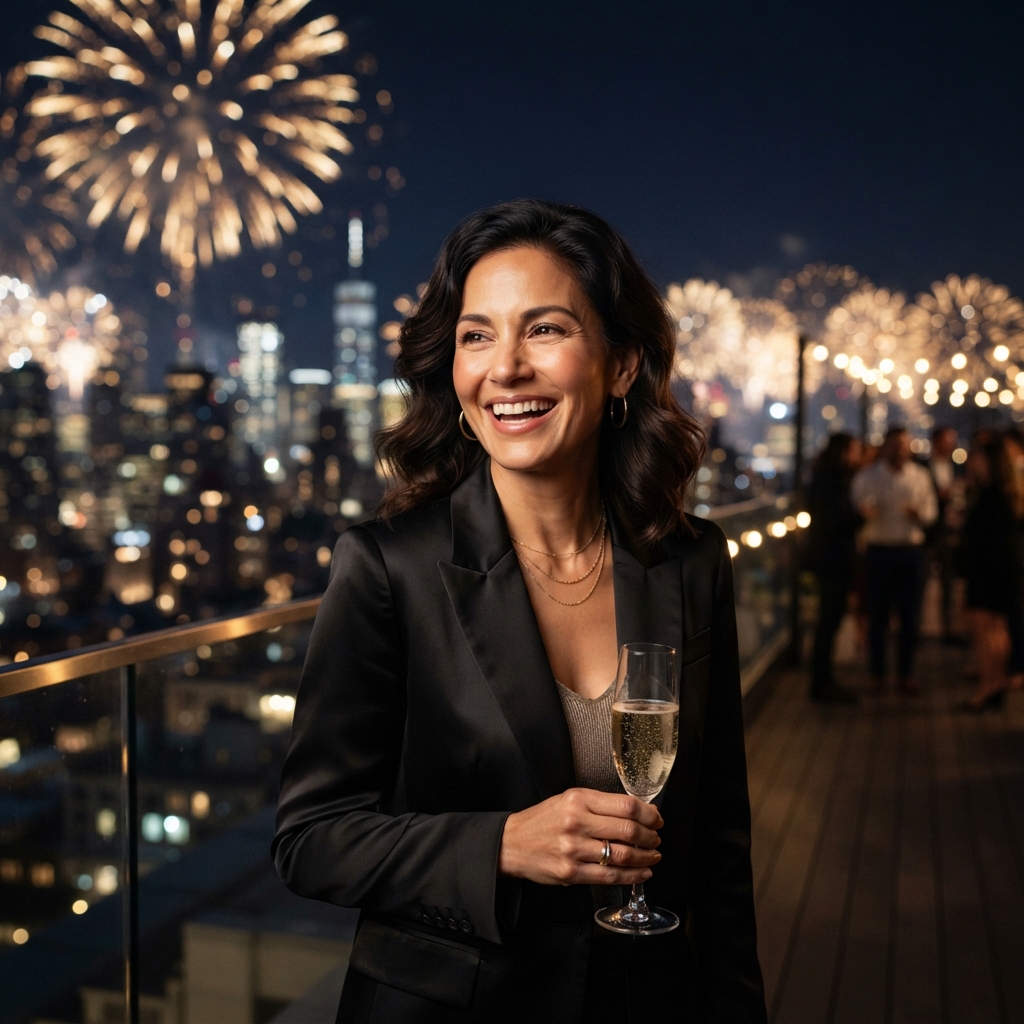 Seasonal and Festival ScenesMidnight New-Year Toast
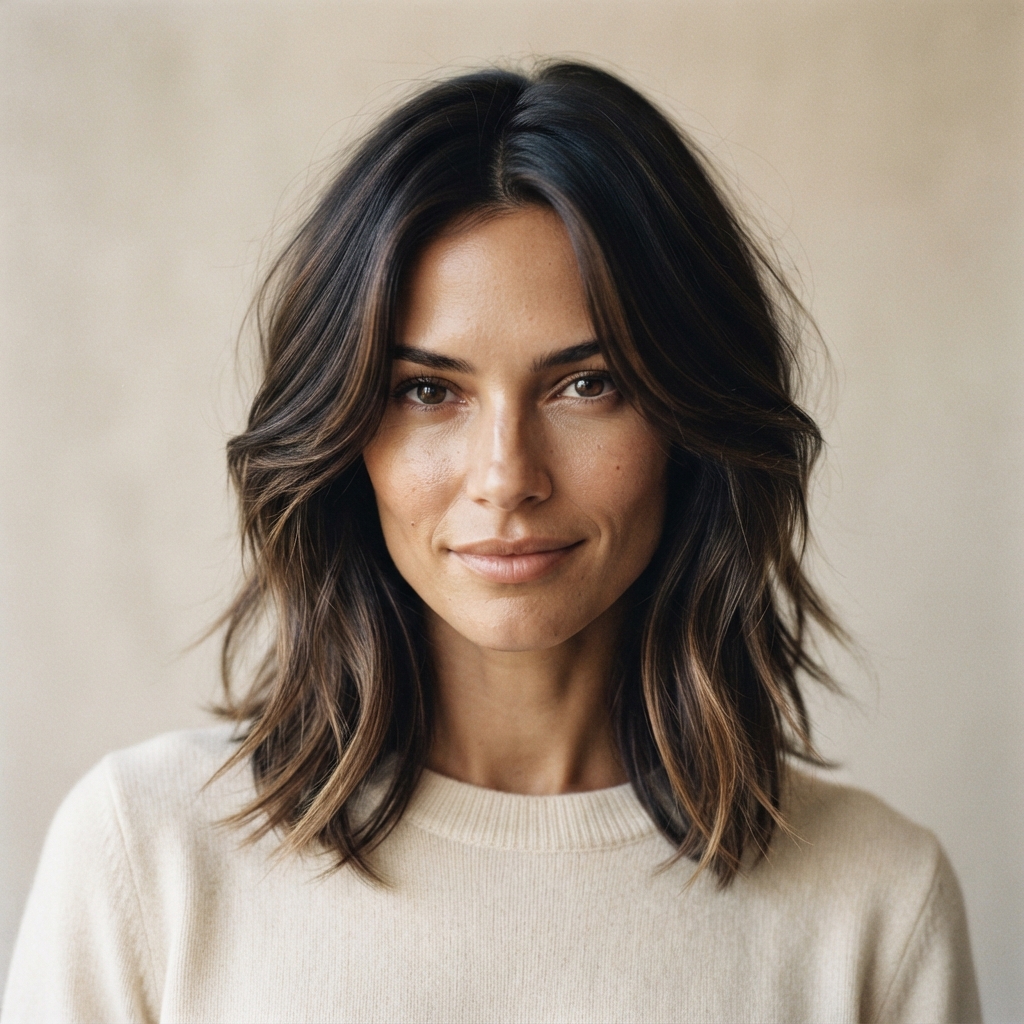 Editing and RestylingEditorial Hair Transformation
![Using the uploaded image as the reference, preserve [the face / both people / the pose / the composition] with complete fidelity. Redesign only [wardrobe / environment / era / palette / lighting] as [creative direction]. Compose for [1:1 /…](https://cdn.findimageprompt.com/gallery/unified/2026-08-19-07-46-17-242-069-general-editing-template-general-editing-template-template-example.jpg) General Editing TemplateGeneral Editing Template — Template example
General Editing TemplateGeneral Editing Template — Template exampleNeed a visual starting point? Explore photo-led references before you upload your own.
EXAMPLE WORKFLOW
AI Photo Prompts keeps your uploaded photo at the centre of the workflow, then uses reference images and language to direct the new photograph.
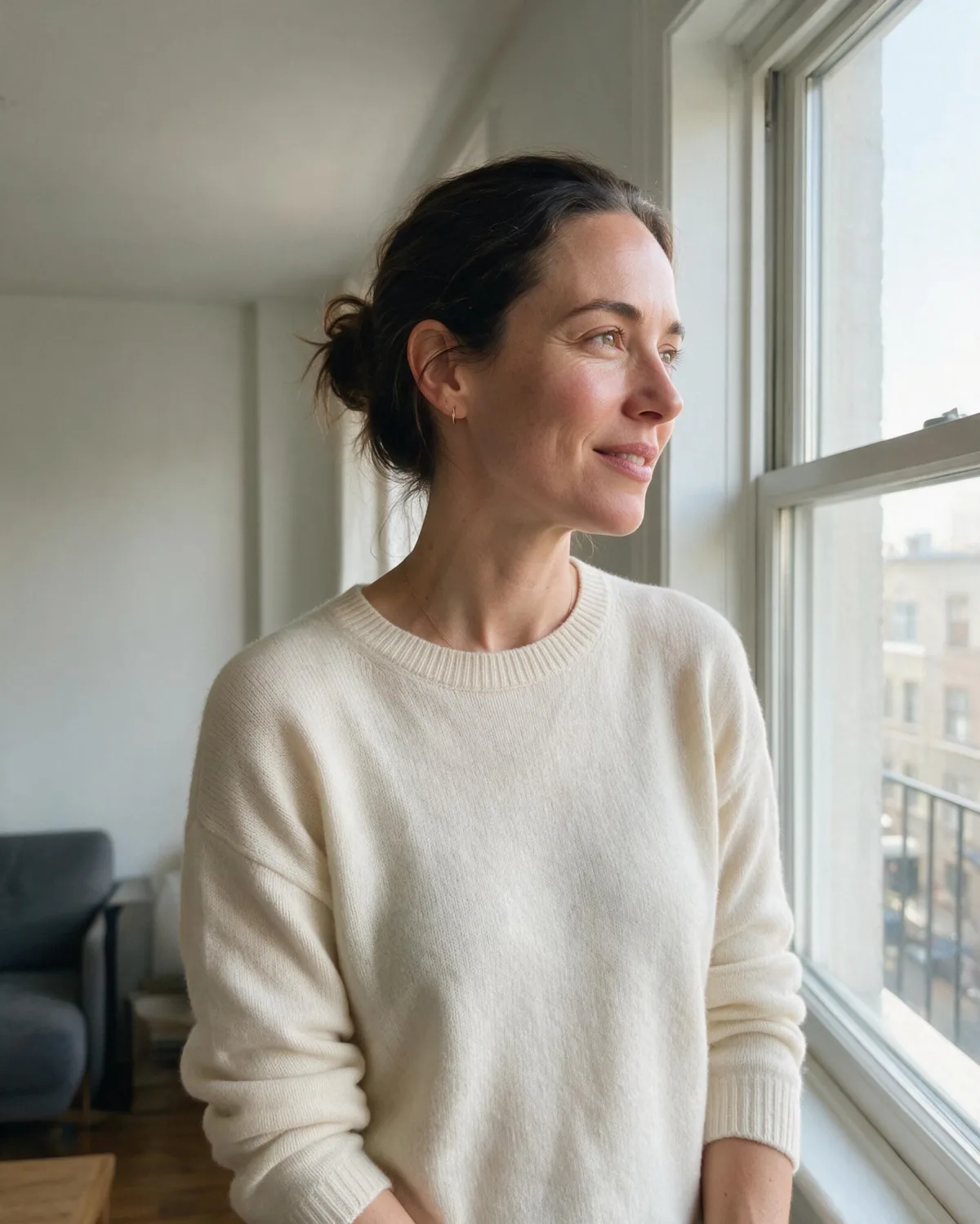
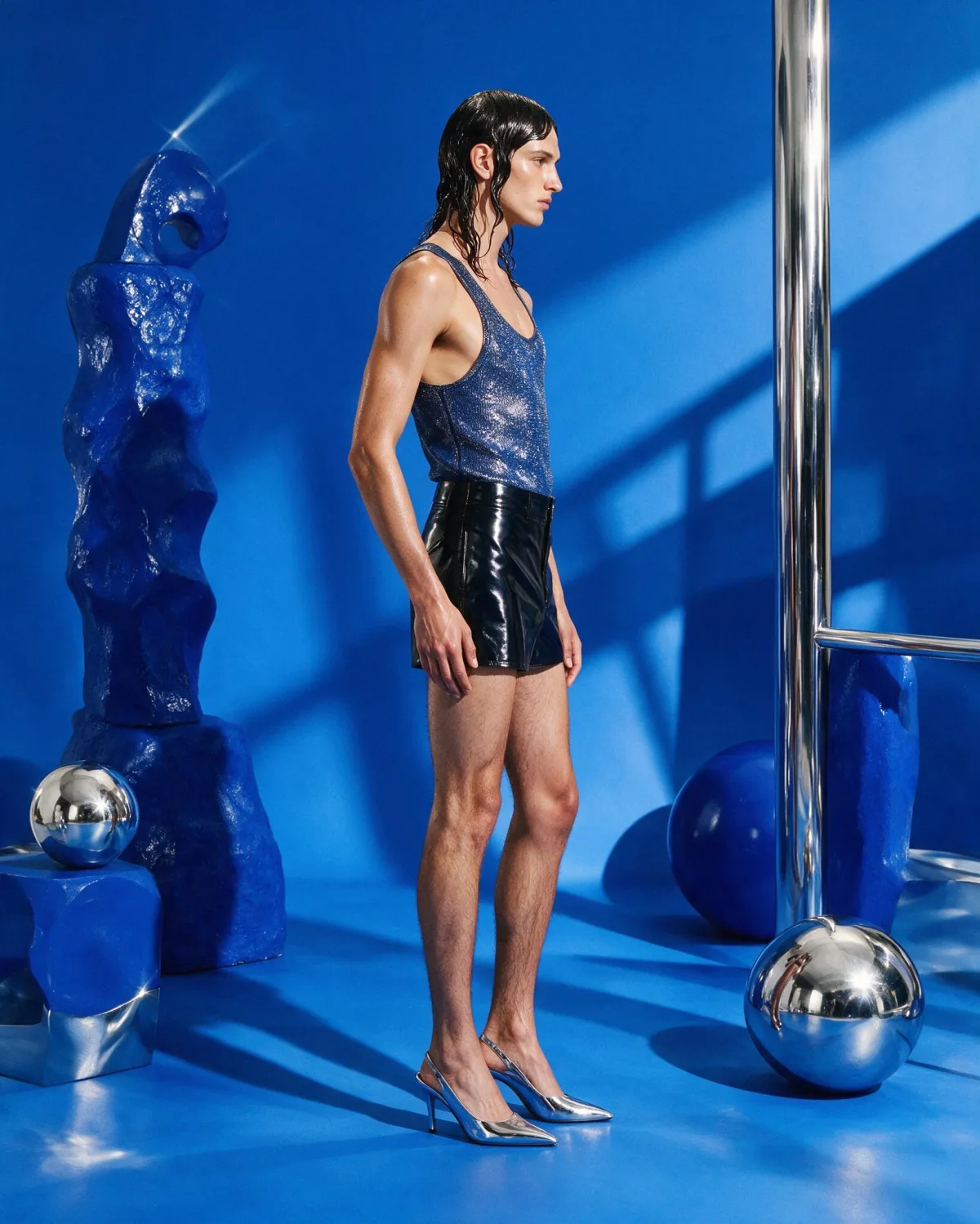
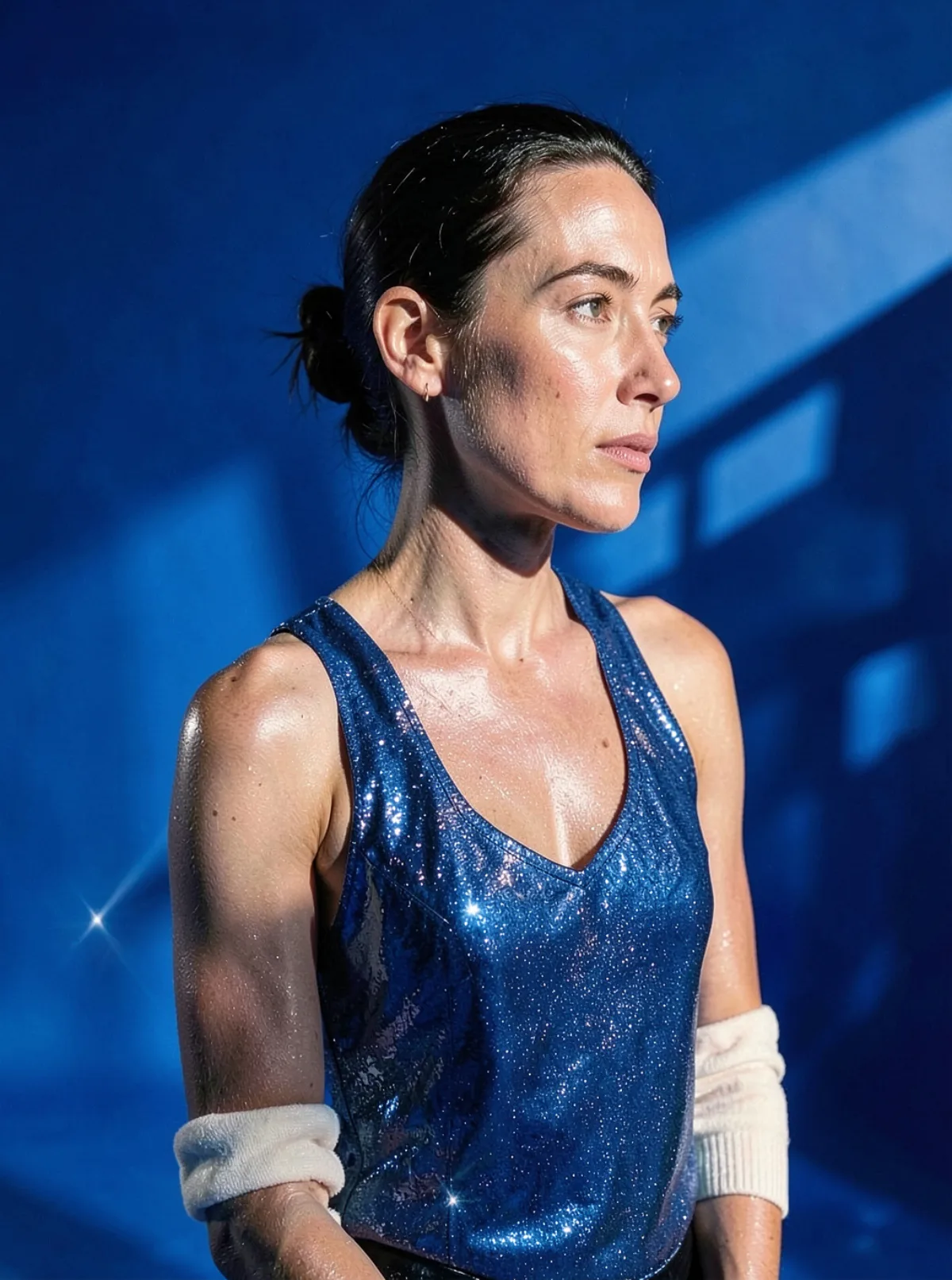
EVERYDAY PHOTO → STYLE REFERENCE
A normal window-lit portrait becomes a bold cobalt fashion image: the face comes from the everyday photo, while the reference contributes the light, color and attitude.
Try this photo workflow →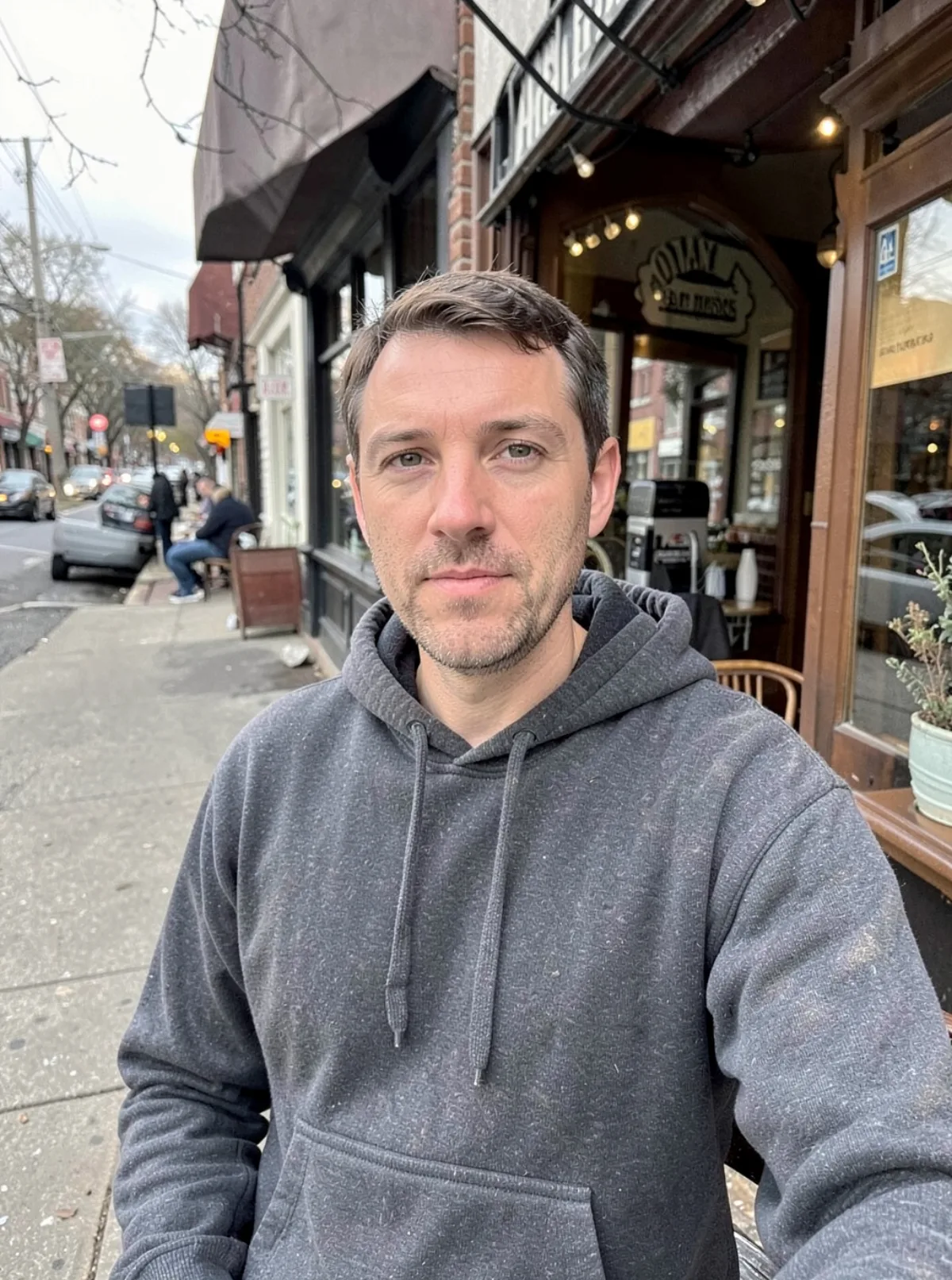
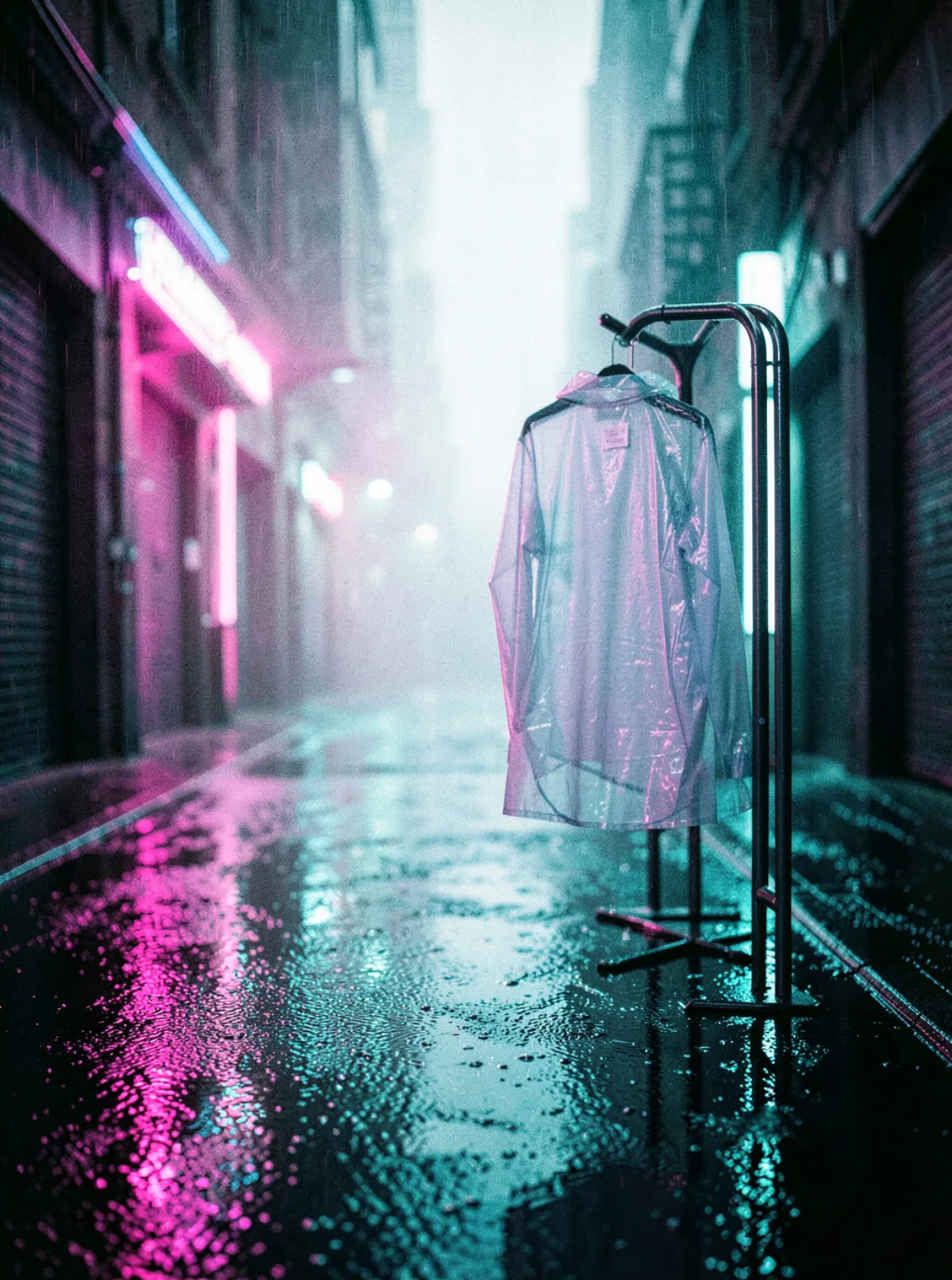
EVERYDAY PHOTO → STYLE REFERENCE
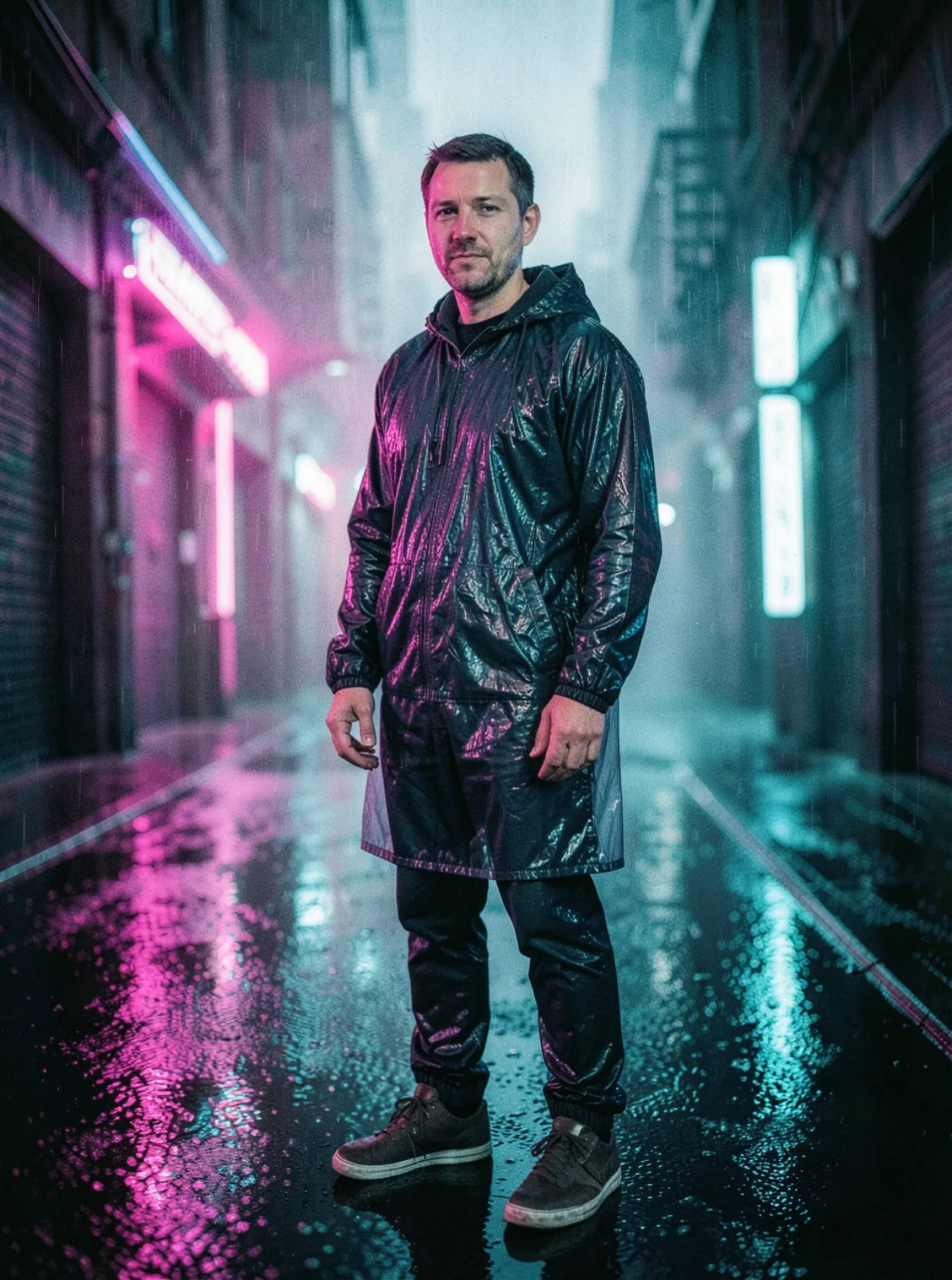
A casual café snapshot keeps the person grounded while a people-free cyber-noir mood reference transfers its neon, rain and cinematic street language.
Try this photo workflow →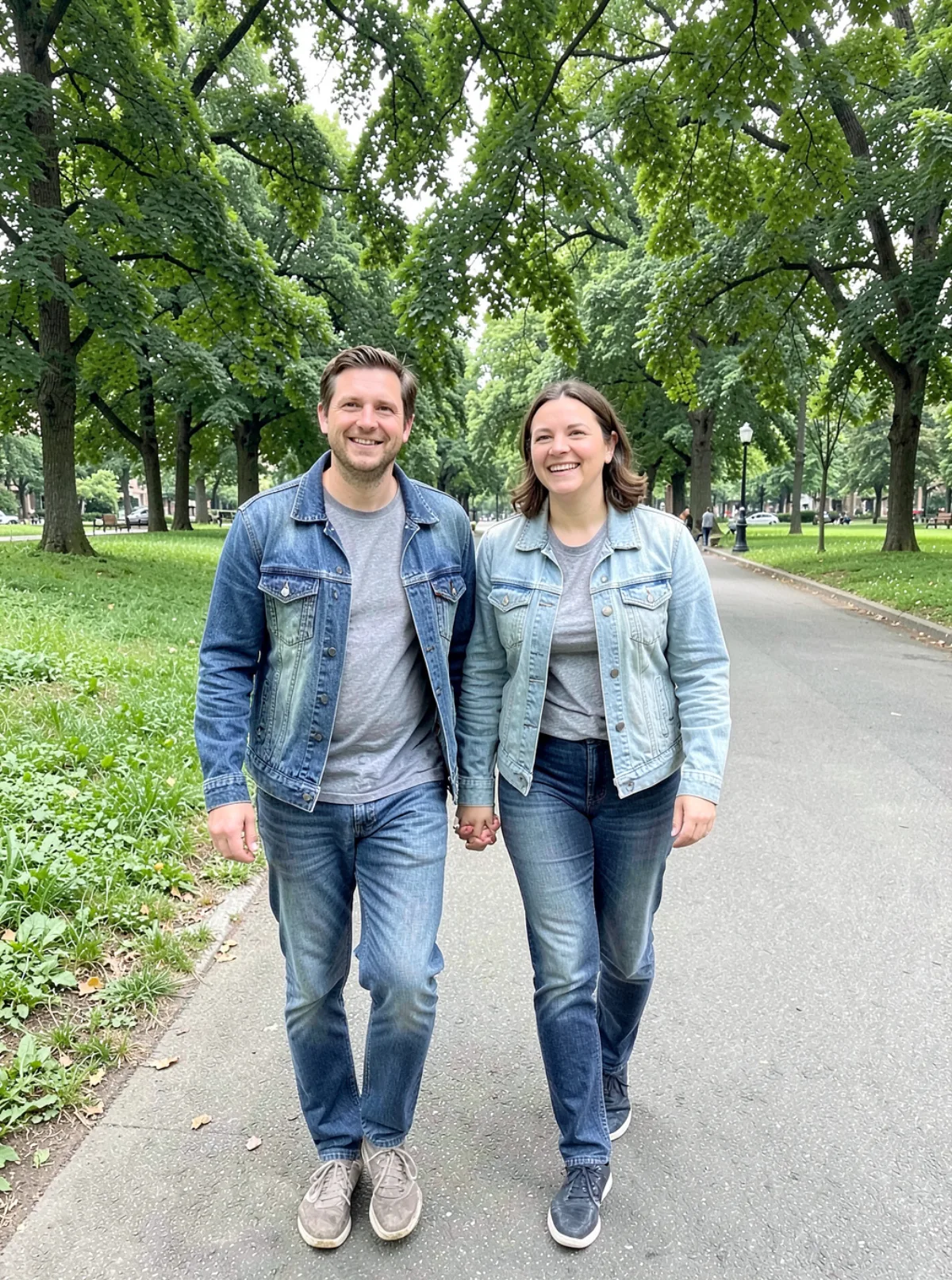
EVERYDAY PHOTO → STYLE REFERENCE
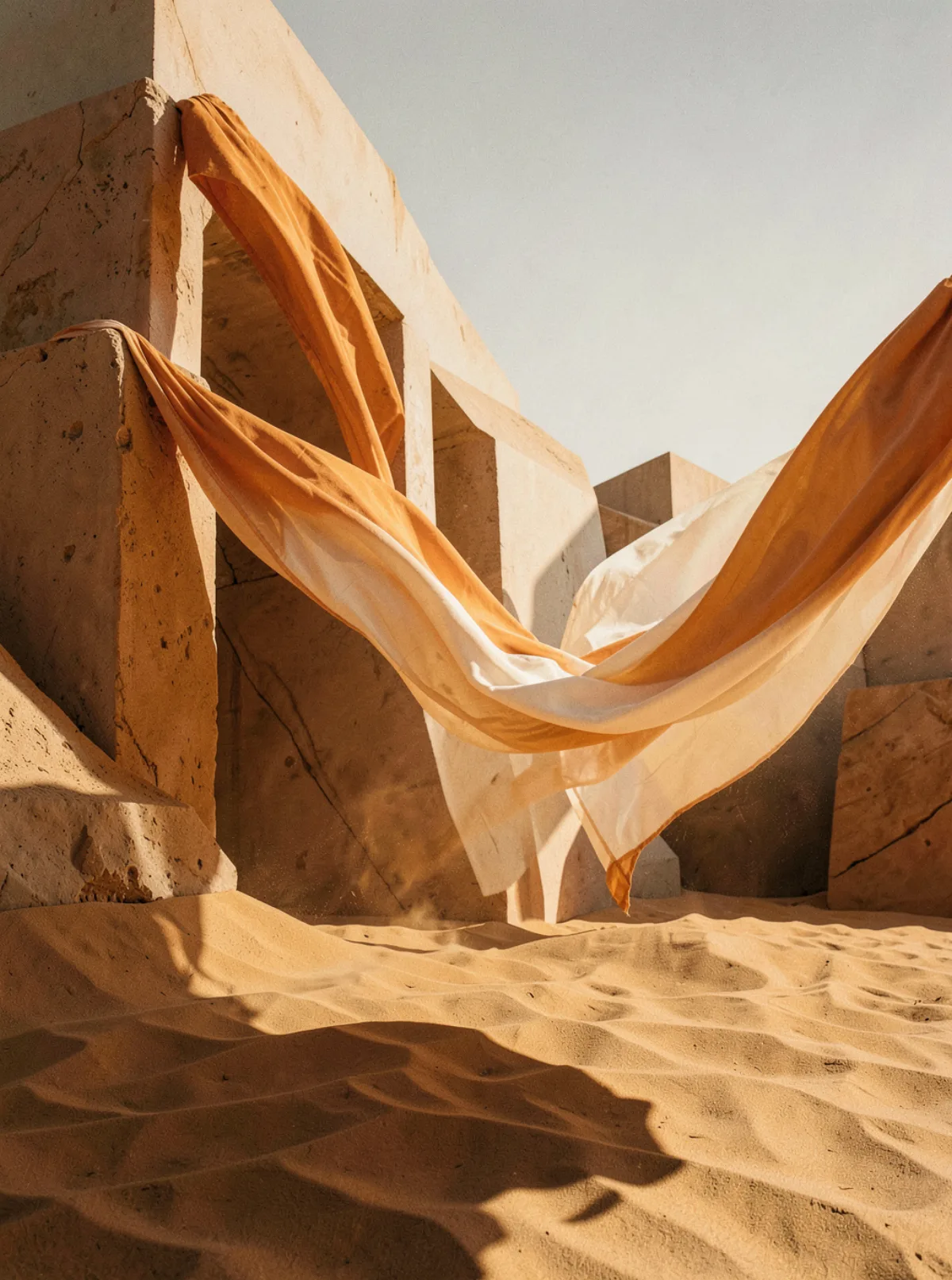
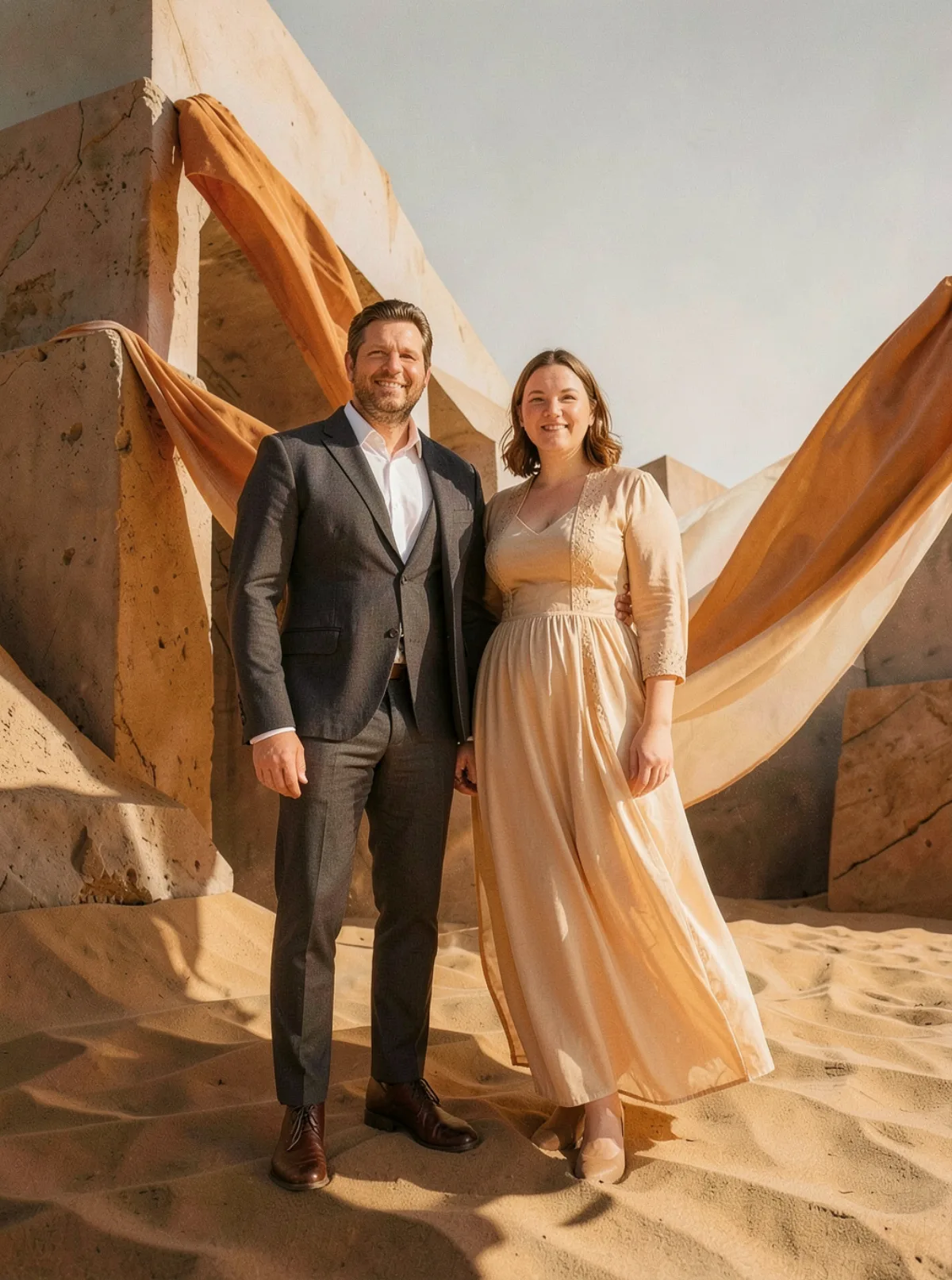
An ordinary couple snapshot becomes a confident travel-fashion image by combining the people from one photo with the palette and landscape from a people-free desert mood reference.
Try this photo workflow →A PHOTO-FIRST WORKFLOW
AI Photo Prompts is designed around a different starting point from a text-only AI image generator. Your own photo establishes the person. Reference photos establish the visual language. An optional prompt connects the two with a precise instruction about the new scene.
Upload a clear image of the person you want to carry into the new AI photo. The model is instructed to preserve recognizable facial identity, natural complexion and important visible features while changing the creative context.
Add images for the pose, wardrobe, location, light, color, composition or photographic finish you want. They guide the result without asking the model to copy the identity of somebody else.
Use the optional photo direction to say what matters most: “make this a candid travel portrait,” “keep my expression and change the setting,” or “use the reference lighting with a softer editorial finish.”
THREE SIMPLE INPUTS
IMAGE TO IMAGE, EXPLAINED
Image-to-image generation takes a picture as the input instead of a blank canvas. The model reads the input image, applies your prompt and any reference images, and generates a new image that keeps what you asked to keep. In this tool the input is a photo of a person, which makes it an AI photo editor with a prompt as much as a generator: the same workflow handles a background swap, an outfit change, a new lighting treatment, a style transfer to film or editorial, or a full scene change with the person carried across.
Use it when the person matters. If you only need a picture in a certain style, the AI Image Generator with an optional reference is faster. If you want the prompt behind a picture rather than a new picture, use Image to Prompt. Use this page when the answer to “who is in the photo” has to stay the same.
Each prompt below follows the same pattern: input, change, preserve. Copy one, replace the details, and run it with your own photo.
“Use image 1 as me. Replace the background with a quiet coastal road at golden hour and match the warm low sun on my face. Keep my face, hair, glasses and pose exactly as they are.”
“Turn this snapshot into a studio headshot: plain warm-grey backdrop, soft key light from the left, subtle fill, sharp focus on the eyes. Keep my expression and outfit; remove the clutter behind me.”
“Make this photo look like it was shot on 35mm Kodak Portra: warm skin, soft grain, gentle halation on the highlights, slightly lifted shadows. Do not change the framing or the people.”
Add a second image when words are not enough. A reference can carry a pose, a wardrobe, a location, a colour palette or a photographic finish, and the prompt tells the model which image does which job.
“Image 1 is me. Use image 2 only for the outfit and the pose; keep my face and body shape from image 1. Set the scene in a sunlit apartment with sheer curtains.”
“Image 1 is the person. Image 2 is a neon-rain street with no people; borrow its magenta and cyan light, wet reflections and cinematic mood. Keep the person at the same distance from the camera as in image 1.”
References do not need to show the same person. They are visual instructions, not a second identity, and the model is told not to copy anyone from them.
WHY PHOTO MODE FEELS DIFFERENT
In a text-only generator, the model has to invent both the person and the world around them. In this photo generator workflow, your uploaded photo supplies the personal reference while the other inputs focus on the transformation. That makes the request more useful for profile portraits, couple photos, travel memories, editorial experiments, creator images and social concepts where the subject should still feel like you.
Multiple image input is central to the mode. A reference can show a full-body pose, another can show the lighting, and a third can suggest a location or wardrobe. The selected model receives these images together with a structured instruction so the result has a visual brief to follow rather than a pile of disconnected inspiration.
Start by naming the relationship between the images: “Use image 1 as my identity reference; use image 2 for the pose and image 3 for the lighting.” Then describe the new result. Mention what must stay recognizable, what should change, and the photographic quality you want to feel in the final frame.
A useful direction is concrete but not overloaded: “Keep my face and natural skin texture. Place me in a quiet coastal café at first light, use the reference for the relaxed seated pose, and finish with soft 35mm travel photography.” The photo provides the person; the words tell the model what to do with that person.
The strongest reference is not always the prettiest image. Choose one that clearly demonstrates the quality you want the model to understand: side light across a face, a low camera angle, a particular jacket silhouette, a wide frame with negative space, or a believable candid gesture. If the images conflict, use the prompt to assign each one a role.
Use photos you have permission to process, especially when they contain other people. AI Photo Prompts is a creative transformation tool, not a shortcut for impersonation. Keep the request appropriate, review the result carefully, and make your own decisions about where the image can be shared.
COMMON QUESTIONS
Yes. AI Photo Prompts is an image-to-image (img2img) workflow: you upload an input image, optionally add reference images, write a prompt, and the model generates a new image from those inputs rather than from text alone. It is built for photos of people, so the person in your photo stays recognizable while the scene, styling, pose, lighting or finish changes.
Yes. Describe the edit in plain language: change the background to a coastal road at golden hour, swap the outfit for a charcoal coat, turn the snapshot into a studio headshot, or make it look like 35mm film. Say what must stay the same, such as the face, pose and glasses, and the model treats the rest as editable.
You can try it without an account within the daily free image allowance; the result carries a small watermark for guests. Paid plans remove the watermark, add credits and unlock higher-quality image models.
Name the input first, then the change, then what to preserve: “Use image 1 as me. Replace the café background with a rainy Tokyo street at night, add neon reflections, keep my face, expression and jacket exactly as they are.” One clear change per run gives better results than a list of unrelated edits.
AI Photo Prompts is a photo-first image creation mode. Upload your own photo as the identity anchor, add one or more reference photos for visual direction, and optionally describe the scene you want to create.
Your own photo is required so the model knows which person to carry into the new image. A reference photo is optional: use one when you want to borrow a pose, wardrobe, location, lighting treatment, or composition. You can also describe the direction with a prompt instead.
Yes. Photo mode only shows image models that accept multiple input images. The number of references depends on the selected model, and the interface displays the current limit before you generate.
A regular generator starts from text and creates a new subject. AI Photo Prompts starts from your photo, keeps the person as the identity anchor, and uses reference images plus direction to transform the scene around them. If you want an AI image generator with a reference image but no person to preserve, the AI Image Generator also accepts an optional reference upload.
Choose a clear image with the visual quality you want to borrow: a useful pose, outfit, location, light direction, color palette, or camera distance. References do not need to show the same person; they provide visual instructions, not a second identity.
AI Photo Prompts uses the same image-generation credit pricing as AI Image Generator. The exact cost is shown beside the selected model before you run it, and eligible guests see the same image allowance.
The uploaded images are sent to the selected image model to complete your request. Find Image Prompt does not use them as a public gallery upload. Avoid uploading anything you do not have permission to process, and review the privacy information before using the tool.